Scroll-driven animations tie playback to scroll position instead of time. A user scrolling down a page becomes the timeline: the further they scroll, the further an animation progresses. The technique sits between classic CSS hover states and full JavaScript animation libraries. It is especially useful for long-form storytelling, data visualisation, product tours, and accessible time-based media where the viewer should control pace. On this blog, I treat scroll-driven animation as part of the same engineering discipline as custom players and live streaming: the browser is the runtime, the scrollbar is the transport control, and the animation timeline is the media timeline.
There are two main approaches. The first is JavaScript-driven: listen to scroll events, calculate progress, and update styles or canvas frames. The second is native CSS scroll-driven animations, which are now available in Chromium-based browsers and are being standardised through the CSS animation-timeline and view-timeline properties. I will cover both, because the native approach is cleaner but not yet universal, and the JavaScript approach still matters for production work in the EU public sector and for older embedded webviews.

What Scroll-Driven Animation Actually Means
A scroll-driven animation maps a scroll range to an animation range. If a section is 2000 pixels tall and the viewport is 800 pixels tall, the scrollable distance is 1200 pixels. That 1200-pixel range can drive a 0% to 100% animation. The mapping can be linear, eased, or stepped. The key difference from a time-based animation is that the user can reverse it by scrolling back up. This reversibility is what makes the technique feel physical and controllable.
Adjacent concepts include parallax scrolling, scroll-jacking, sticky positioning, intersection observers, and the Web Animations API. Parallax moves layers at different rates. Scroll-jacking hijacks the scrollbar to force a narrative sequence. Sticky positioning pins an element while its container scrolls. Intersection observers trigger one-shot events when an element enters the viewport. Scroll-driven animation is the continuous version: progress, not just entry and exit.
Why This Matters for Multimedia Engineering
For a site like this one, scroll-driven animation is not decoration. It is a way to build lightweight, scrubbable previews of video timelines, audio waveforms, subtitle tracks, and encoding profiles. Instead of embedding a full video player for a short explainer, you can animate a sequence of frames or a waveform as the user scrolls. The user gets a media-like experience without autoplay, without a play button, and without buffering. That is a real accessibility and performance win.
There is also a regulatory angle. The European Accessibility Act and the Web Accessibility Directive push public-sector sites toward user-controlled motion. Scroll-driven animation respects that: the user controls the pace, can stop at any point, and can reverse. The main risk is motion sensitivity. Large parallax shifts or continuous movement can trigger vestibular discomfort. The safe pattern is to keep motion subtle, avoid full-screen background movement, and respect the prefers-reduced-motion media query.
Bench Test 1: A JavaScript Scroll Progress Bar
Start with the simplest reproducible case: a progress bar at the top of the page that fills as you scroll. This is the hello-world of scroll-driven animation and a good way to test your measurement logic before building anything more complex.
The core calculation is:
const doc = document.documentElement;
const scrollable = doc.scrollHeight - window.innerHeight;
const progress = window.scrollY / scrollable;
That gives a value from 0 to 1. You can then set a CSS custom property or directly update a width:
const bar = document.querySelector('.progress-bar');
window.addEventListener('scroll', () => {
  const scrollable = doc.scrollHeight - window.innerHeight;
  const progress = scrollable > 0 ? window.scrollY / scrollable : 0;
  bar.style.transform = `scaleX(${progress})`;
}, { passive: true });
Use transform: scaleX() instead of width because transforms run on the compositor thread and avoid layout thrashing. The passive: true flag tells the browser you will not call preventDefault(), which keeps scrolling smooth on mobile.
This pattern is the foundation for everything else. Once you can measure scroll progress reliably, you can map that progress to any property: opacity, rotation, translation, filter, or a canvas frame index.
Bench Test 2: Scrubbing a Frame Sequence
A more interesting test for multimedia work is scrubbing through a sequence of images as the user scrolls. This is how many editorial sites create a “video-like” experience without a video file. You preload a set of frames, then show the frame that matches the current scroll progress.
The HTML is simple:
<div class="frame-scrubber">
  <img src="frame-0001.jpg" alt="Frame 1 of an encoding test sequence">
</div>
The JavaScript maps progress to a frame index:
const frames = [
  'frame-0001.jpg',
  'frame-0002.jpg',
  // ... up to frame-0120.jpg
];
const img = document.querySelector('.frame-scrubber img');
const section = document.querySelector('.frame-scrubber');

function updateFrame() {
  const rect = section.getBoundingClientRect();
  const total = rect.height - window.innerHeight;
  const progress = total > 0 ? Math.min(1, Math.max(0, -rect.top / total)) : 0;
  const index = Math.floor(progress * (frames.length - 1));
  img.src = frames[index];
}

window.addEventListener('scroll', updateFrame, { passive: true });
This is a simplified version. In production you would preload all frames, use a canvas instead of an img element to avoid flicker, and throttle the update with requestAnimationFrame. But the logic is the same: scroll position becomes a frame index. This is exactly how a video scrubber works, except the user’s scroll wheel is the scrubber.
For a real project, I would generate frames with ffmpeg at a low frame rate, compress them as WebP or AVIF, and keep the total payload under a few hundred kilobytes. A 120-frame sequence at 320×180 pixels is usually enough for a short explainer. The result loads faster than a video, works without JavaScript media APIs, and gives the user complete control.
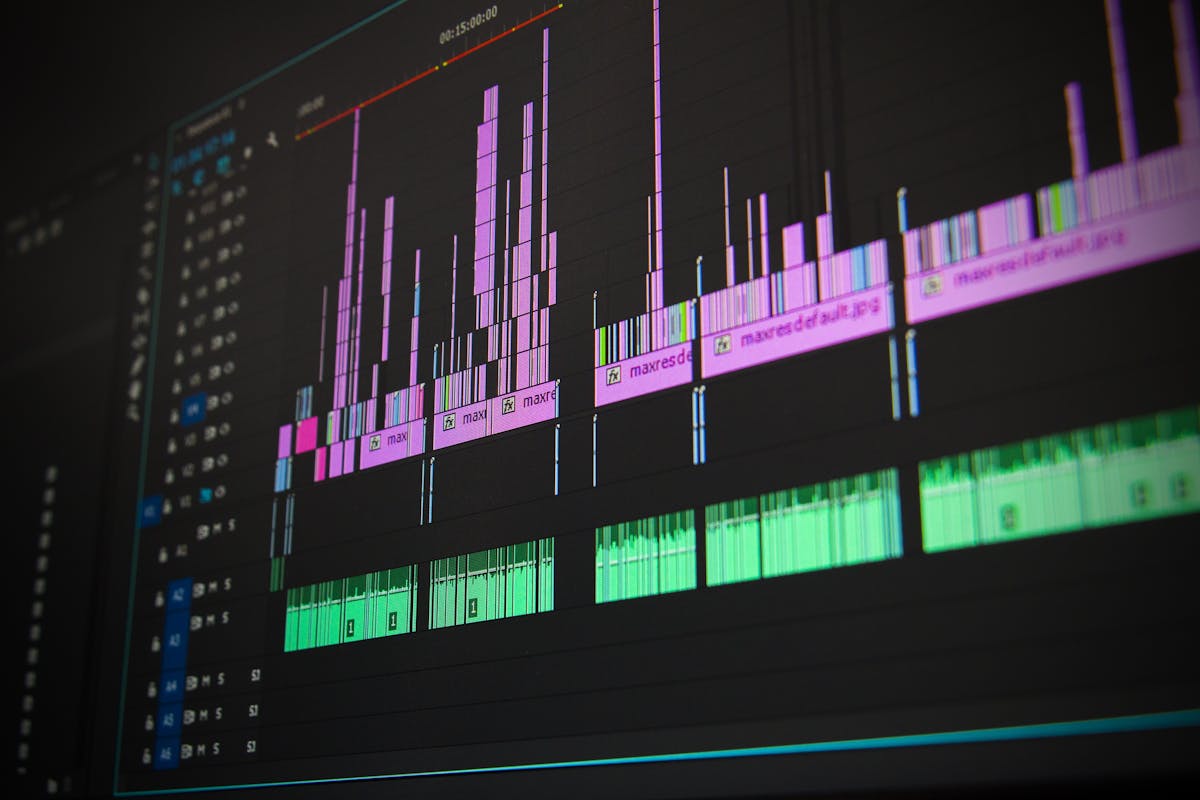
Bench Test 3: Native CSS Scroll-Driven Animations
The native CSS approach is newer and cleaner. Instead of JavaScript scroll listeners, you declare an animation timeline that is tied to scroll position. The syntax is still evolving, but the core idea is stable in Chromium 115 and later.
A basic scroll progress timeline looks like this:
.animated-element {
  animation: fade-in linear;
  animation-timeline: scroll();
}

@keyframes fade-in {
  from { opacity: 0; transform: translateY(40px); }
  to { opacity: 1; transform: translateY(0); }
}
The scroll() function creates an anonymous timeline based on the nearest scroll container. The animation progresses as the container scrolls. You can also use view() to create a timeline based on an element’s position within the viewport:
.card {
  animation: card-enter linear;
  animation-timeline: view();
  animation-range: entry 0% entry 100%;
}
This animates the card as it enters the viewport, from the moment it first appears to the moment it is fully visible. The animation-range property controls which part of the scroll range maps to the animation. This is much more expressive than a JavaScript scroll listener because you can target specific phases: entry, exit, cover, and contain.
The trade-off is browser support. As of early 2025, scroll-driven animations work in Chromium-based browsers but not in Firefox or Safari. Firefox has the feature behind a flag, and Safari has not shipped it. For a European public-sector site, that is a problem. You cannot ship an experience that silently breaks for a large share of users. The pragmatic approach is progressive enhancement: use native CSS where supported, and fall back to a JavaScript implementation elsewhere.
You can test for support with:
@supports (animation-timeline: scroll()) {
  .animated-element {
    animation-timeline: scroll();
  }
}
Or in JavaScript:
if (CSS.supports('animation-timeline', 'scroll()')) {
  // Native path
} else {
  // JavaScript fallback
}
Performance: The Part Most Tutorials Skip
Scroll-driven animation is easy to build badly. The main failure mode is layout thrashing: reading layout properties like getBoundingClientRect() or offsetTop inside a scroll handler, then writing styles in the same frame. The browser has to recalculate layout between the read and the write, which causes jank.
The fix is to separate reads from writes. Measure scroll progress in one pass, store the values, then apply styles in a requestAnimationFrame callback. Better yet, use the Intersection Observer API for entry and exit detection, and only run the continuous animation while the element is near the viewport.
For image sequences, the bottleneck is usually image decoding. Preloading all frames as Image objects helps, but decoding 120 full-resolution images on a low-end Android phone will still stutter. The solution is to use a single sprite sheet or a canvas with pre-decoded frames. If you must use individual images, keep them small and use a format that decodes quickly, like WebP or AVIF.
For CSS animations, the rule is the same as always: animate only transform and opacity. Those properties run on the compositor thread and do not trigger layout or paint. Animating width, height, top, left, or margin will cause jank on anything but a fast desktop machine.
Accessibility and the EU Lens
Scroll-driven animation has a specific accessibility profile. It is better than autoplaying video because the user controls the pace. It is worse than static content because it can cause motion sickness and can be confusing for screen reader users who cannot see the visual progression.
The baseline requirements are:
- Respect
prefers-reduced-motion. If the user has requested reduced motion, show the final state of the animation instead of the animated transition. - Do not make scroll position the only way to access content. If a scroll-driven animation reveals important information, that information must also be available in the DOM without scrolling.
- Keep motion amplitude small. Large parallax shifts are the most common trigger for vestibular discomfort.
- Test with a keyboard. Scroll-driven animations should not trap focus or prevent keyboard scrolling.
The European Accessibility Act, which applies to many products and services sold in the EU from June 2025, includes requirements for user control over moving content. Scroll-driven animation can satisfy that requirement if it is implemented as a user-controlled timeline rather than an automatic sequence. The key is that the user initiates and controls the motion.
For public-sector sites, the Web Accessibility Directive already requires WCAG 2.1 AA compliance. WCAG 2.1 Success Criterion 2.2.2 (Pause, Stop, Hide) applies to moving, blinking, scrolling, or auto-updating information that starts automatically, lasts more than five seconds, and is presented in parallel with other content. Scroll-driven animation that only moves when the user scrolls is generally exempt, but the prefers-reduced-motion requirement still applies as a best practice and is increasingly expected in accessibility audits.
Choosing Between JavaScript and Native CSS
The decision comes down to three factors: browser support, complexity, and maintainability.
Native CSS scroll-driven animations are the right choice when you are building for a controlled environment, like an internal tool or a Chromium-only kiosk. They are declarative, they run on the compositor thread, and they do not require JavaScript. The downside is that they are not yet cross-browser, and the syntax is still changing.
JavaScript is the right choice when you need cross-browser support, when you need to drive canvas or WebGL content, or when you need fine-grained control over the mapping between scroll position and animation progress. The downside is that you are responsible for performance, throttling, and cleanup.
For most public-facing sites, the pragmatic answer is a hybrid: use native CSS where supported, and fall back to a lightweight JavaScript implementation elsewhere. The fallback does not need to be feature-complete; it just needs to provide the same content in a usable form.
A Reproducible Example: Scroll-Scrubbed Waveform
Let me walk through a concrete example that ties this to the blog’s core topic: a scroll-scrubbed audio waveform. Instead of embedding an audio player, you render the waveform as a series of bars and let the user scrub through it by scrolling.
The HTML is a container with a canvas:
<section class="waveform-scrubber" aria-label="Audio waveform, scroll to scrub">
  <canvas id="waveform" width="800" height="200"></canvas>
  <p class="scrub-hint">Scroll to move through the audio timeline</p>
</section>
The JavaScript draws the waveform once, then updates a playhead position based on scroll progress:
const canvas = document.getElementById('waveform');
const ctx = canvas.getContext('2d');
const section = document.querySelector('.waveform-scrubber');

// Generate a fake waveform for the demo
const bars = [];
for (let i = 0; i < 200; i++) {
  bars.push(0.2 + Math.random() * 0.8);
}

function drawWaveform(progress) {
  ctx.clearRect(0, 0, canvas.width, canvas.height);
  const barWidth = canvas.width / bars.length;
  bars.forEach((height, i) => {
    const x = i * barWidth;
    const barHeight = height * canvas.height;
    const y = (canvas.height - barHeight) / 2;
    const isPlayed = i / bars.length < progress;
    ctx.fillStyle = isPlayed ? '#2a7ae2' : '#cccccc';
    ctx.fillRect(x, y, barWidth - 1, barHeight);
  });
  // Playhead
  const playheadX = progress * canvas.width;
  ctx.fillStyle = '#111111';
  ctx.fillRect(playheadX, 0, 2, canvas.height);
}

function updateWaveform() {
  const rect = section.getBoundingClientRect();
  const total = rect.height - window.innerHeight;
  const progress = total > 0 ? Math.min(1, Math.max(0, -rect.top / total)) : 0;
  drawWaveform(progress);
}

window.addEventListener('scroll', () => {
  requestAnimationFrame(updateWaveform);
}, { passive: true });

updateWaveform();
This is a simplified version, but it demonstrates the core idea. The waveform is the media timeline. The scrollbar is the transport control. The user scrubs through the audio by scrolling. For a real project, you would load actual waveform data from an audio file, add a time readout, and provide a keyboard-accessible alternative.
The same pattern works for video frame sequences, subtitle tracks, or encoding quality comparisons. Scroll position becomes a universal scrubber for any time-based media.

Common Pitfalls and How to Avoid Them
Pitfall 1: Animating Too Much at Once
When every section of a page has its own scroll-driven animation, the page feels busy and the performance cost adds up. Limit scroll-driven animation to one or two key moments per page. The rest of the page should scroll normally.
Pitfall 2: Ignoring the Scroll Container
Scroll position is relative to a scroll container, not always the document. If your animation lives inside a scrollable div or a container with overflow: auto, you need to measure progress relative to that container, not the window. The native CSS scroll() function handles this automatically, but JavaScript implementations often get it wrong.
Pitfall 3: Forgetting Mobile
Mobile browsers have different scroll physics, different viewport sizes, and different performance characteristics. A scroll-driven animation that feels smooth on a desktop with a mouse wheel can feel janky on a phone with touch scrolling. Test on real devices, not just in DevTools device mode.
Pitfall 4: Breaking the Back Button
If a scroll-driven animation changes the page structure or content as the user scrolls, the browser’s scroll restoration may not work correctly when the user navigates back. Keep the DOM structure stable and use visual transforms rather than inserting or removing content.
Tools and References
The main specification for native scroll-driven animations is the CSS Scroll-driven Animations Module Level 1 from the W3C. It defines the scroll() and view() timeline functions, the animation-timeline property, and the animation-range property. The spec is still in draft status, but the core features are stable in Chromium.
For JavaScript implementations, the Intersection Observer API on MDN is the reference for detecting when elements enter and leave the viewport. It is more efficient than scroll listeners for one-shot triggers and pairs well with continuous scroll progress calculations.
For accessibility guidance, the WCAG 2.1 Understanding document for Pause, Stop, Hide explains when moving content needs a pause mechanism. It is the document I check first when deciding whether a scroll-driven animation needs additional controls.
FAQ
Do scroll-driven animations work in all browsers?
No. Native CSS scroll-driven animations currently work in Chromium-based browsers (Chrome, Edge, Opera) from version 115 onward. Firefox has the feature behind a flag, and Safari has not shipped it. For cross-browser support, use a JavaScript fallback or progressive enhancement with @supports.
Are scroll-driven animations accessible?
They can be, but they require care. The user controls the pace, which is good. But continuous motion can trigger vestibular discomfort, and content revealed only through scrolling may be missed by screen reader users. Always respect prefers-reduced-motion, keep motion amplitude small, and ensure all content is available in the DOM without scrolling.
What is the difference between scroll-driven animation and parallax?
Parallax moves background and foreground layers at different rates to create a sense of depth. Scroll-driven animation maps scroll position to an animation timeline, which can include parallax effects but also covers opacity changes, frame scrubbing, progress bars, and any other property that can be animated. Parallax is a subset of scroll-driven animation.
Can I use scroll-driven animation instead of a video player?
For short, non-audio sequences, yes. A scroll-scrubbed frame sequence can replace a video for explainers, product demos, and visual comparisons. It loads faster, gives the user complete control, and avoids autoplay restrictions. For content with audio, long duration, or the need for precise seeking, a real video player is still the right tool.
Next Steps for This Blog
This article is the first in a planned series on user-controlled media timelines. The next piece will cover building a scroll-scrubbed video frame sequence with ffmpeg and WebP, including the encoding settings that keep the payload small enough for mobile. After that, I want to look at the Web Animations API as a bridge between CSS and JavaScript animation, and how it can drive scroll-linked timelines with more control than either approach alone.
If you are building something similar, the best way to learn is to start with the progress bar example and extend it. Measure scroll progress, map it to a property, and test on a real phone. The rest is refinement.